Tuesday, March 16, 2010

Get A Quick Look At The New OS By Google

Recent news talks about the Google lifting the veil on its planned Chrome operating system. Computers powered by the software will become available later this year and may pose a threat to Microsoft, whose Windows software powers the vast majority of personal computers and most of the multi-tasking world including trading computers.

The new operating system, which is obviously tied to Google's Web browser, also named Chrome is not trying to be a better version of Windows. Instead, it is aiming to shift users toward its vision of "cloud computing," a model in which programs are not installed on a PC but rather are used over the Internet and accessed through a Web browser. In Google land, a user's data will also reside on servers across the Internet, rather than their PC. Already most PC users rely on cloud computing, using their Internet browsers to access things like e-mail, photo albums and digital maps.

Google Chrome OS is an open source, lightweight operating system that will initially be targeted at net-books. Google already talking to partners about the project and plan to make it available to consumer's in the second half of 2010.

Google demonstrated an early version of the Chrome operating system on a net-book during a news conference at its Mountain View headquarters. The Chrome desktop looked similar to the Chrome browser. Using application tabs, which are meant to run the programs people use most, like e-mail or calendar software.

Speed, simplicity and security are the key aspects of Google Chrome OS. Designed to be lightweight and fast enough to get you on the web in seconds. Figuring that most of what people experience takes place on the web, Google has gone back to the basics and completely redesigned the underlying security architecture of the OS so that users don't have to deal with viruses, malware and security updates.

A net-book using the operating system booted in seven seconds, and Google said it was working to make the start-up time even faster, however they we're reluctant to share information regarding which hardware makers were planning to build machines that used the operating system, but said it would work closely with manufacturers.

Google is pushing to make net-books that are slightly larger than today's models and include full-size keyboards. I imagine this could become a rival to the ipad and the OX as well. Let's see!

triple monitor stand, Setting up dual monitors, multiple monitors

A Guide To The Multi-Monitor Computer You Can Understand

Researchers Find Advantages in Multiple Monitors

According to a NEC-Mitsubishi Press Release I found mega surfing, Multiple Monitor Computers are on the rise in oticable productivity increases. The following is an exert of what I read. There was a lot of mumbo jumbo however I put in the best information here along with handy and helpful links to comparable products I think you can get an idea from. For your convenience of course.

Two Monitors are better than one

Multiple Monitors (also known as Multi-Monitor, Multi-Screen, and Dual Monitors) are all synonymous terms referring to the use of more than one monitor, connected to a single computer, and controlled by a single mouse and keyboard. This type of setup allows you to visually interface with more than one program at a time, as well as compare charts, and use “copy and paste” across multiple screens.

Who wants an Extra Monitor or Two?If you’re currently using or plan to use Windows XP or Vista, did you know that you can configure your desktop run Multi-Screen Displays? It’s easier than the average non-techgeek might think, and this blog is going to give you step-by-step instructions on how to use this awesome feature built in the Windows operating system. The whole process should only take the everyday novice only a few minutes to get you out of the stone age of single monitor computing and into the now with Multiple Monitor Displays. This is a very efficient way to get that Dual Monitor Setup, and once you try it, you’ll never want to go back to one monitor again, I guarantee it. Instead you may be on the search for the most accessible Dual Monitor Video Card or at least a Dual Monitor Adapter to satisfy your new found productivity multiplier.

Reason why I love using a multiple monitor computer

The days when nerdy computer geeks isolated themselves in fear of persecution are far behind us. Today Bill Gates still reigns as the savior of geeks all around the world, and with all due glory. Now that many so-called "computer geeks" are becoming wealthy, the age of ostracizing the computer savvy is coming to an end. Although the road to true computer geekdom is long and torturous, the benefits are well worth it.

Two Monitors please

Dual computer monitors can come in different designs, styles, colors, and types. Therefore it is important to have a general idea of what to expect. Whether its a light duty load or heavy duty load, the strength of your mounts will depend on what class it is.

A dual monitor wall mount can have many useful features to easily rotate the monitors, and to tile the arm to the desired direction. Mounting your dual display on mounts can have the advantage of saving space, the ability to move monitors in desired directions, ability to rotate monitors to view the monitor contents in a landscape or portrait view, giving those dual monitor backgrounds a good look. There can be other advantages to using a dual monitor screen stand as well.

Multiple Monitor Computing: A Significant Productivity Trend in its Very Early Stage of Adoption

Multi-monitor, also called Multi-display, Multi-head, and Dual-Monitor, is the use of multiple physical display devices, such as monitors, televisions, and projectors, in order to increase the area available for computer programs running on a single computer system. Microsoft describes this setup as "one of the best ways to improve your productivity". Randy Pausch recommended multiple monitors for improving personal productivity in his Time Management lecture. Contemporary versions of Microsoft Windows, Mac OS, and X Window System (used by GNU/Linux) all support multiple monitors. Dual monitor support once depended on specialized proprietary video drivers supplied with few video cards, along with a multi-display-supporting GUI system. Support for multiple monitor configurations was added as a standard feature in Microsoft Windows in Windows 98. It has been a standard feature in all versions of Apple's Mac OS X (introduced in March 2001), and was a standard feature of the first color Macintosh II introduced in 1987. By adding up to two additional video cards, the Mac supported up to three monitors, although operating system support for multiple monitors wasn't introduced in Windows until the mid 1990s. The all-in-one Mac SE/30 featured a small black & white screen, but could drive an external color monitor.


[caption id="" align="alignright" width="504" caption="Get it Now!"]Get it Now![/caption]

Expanding Your Desktop w/ Multiple Monitors Is A Practical Way To Increase Focus And Productivity.


Some of us are easily dazzled by technology and for Farhad Manjoo, (Writer for The New York Times) a trip to Google's sprawling headquarters in Mountain View, California was "a delirious experience" he says. In one article he mentions seeing a replica of SpaceShipOne, computerized toilets, and solar-cell-covered parking lots. However what caught his attention the most was what he referred to as "pedestrian" programmers' desks, and more specifically their computer monitors.

After meeting several Gmail software engineers, he discovered each sported a spectacular configuration of screens. Based in many different configurations e.g. pairing wide monitors with tall ones, huge screens married to small ones, and several displays in a series. He said the impression was "in addition to building a Web-based e-mail system, they were helping Norad keep tabs on the nations airspace."

For years now, we've all seen the multi-monitor displays in movies, on TV, and even in the real world. The many studies by specialists in human-computer interaction suggest that combining multiple displays can significantly enhance your productivity. The theory simply being that the bigger your display, the more of your work you'll be able to see and the more you'll be moved to do.

Global electronics company NEC, and researchers from the University of Utah conducted a study of office workers who regularly perform several common tasks. The only difference was they used various monitor configurations. The results clearly showed that people who used 20-inch dual monitors were 44% more productive at certain text-editing operations than people using a single monitor.

It wasn't long ago that multi-monitor displays were reserved for stock brokers, film editors, and Google engineers, but not so much for the average Joe in the office. However, prices on LCD panels plummeted by almost a third and continued falling thru 2009, making getting that dream desktop more feasible.

With that in mind Farhad decided to set forth upon a personal quest for multiple monitor Zen, so he got his hands on several displays and paired them up in every way possible.

First he tried using two 22-inch Dell wide-screen monitors side by side, creating one very wide screen that measured roughly 38 inches diagonally. Then, he rotated each display so that its long side ran vertically which allowed him to read a full document on the screen without scrolling. He said he even copied a style he saw at Google when he placed one screen vertically and the other horizontally- basically forming the letter T as if on its side with the wide screen used for working with side-by-side windows, and the tall screen for focusing on a single, long document.

He also tried a couple configurations with his laptop including one wide monitor and one tall monitor. He said to have found the "Cadillac Escalade of displays" when he combined an enormous 30-inch wide screen monitor to the equation, and confirmed the researchers' findings.

As office workers, we all know getting things done on the Internet can be very distracting, for even the best of wills. A typical desktop monitor 19-inch diagonal is really only the Honda Civic of displays. The world wide web is generally a wormhole that routinely pull us off track. Switching thru browser windows each time we look something up, but as soon as you do so, all traces of previous work will disappear from the screen and we forget about the original tasks at hand, and falling into a deep browsing trance, and wake up wondering how in the world you ended up on some other topic having nothing at all to do with your work.

A larger display may not remove all the distractions of everyday surfing, however it can blunt their force by giving you more room to position windows and still being able to see your work, you'll more than likely be drawn back to it sooner if you can see it.

Farhad had found that it wasn't just that multiple monitors reduced distractions; the setup also increased hid efficiency when he did finally get around to working, He would typically use two main programs when writing articles-Word and some other text editor in which he compiled all his notes. He generally switches back and forth from both programs simultaneously. Transferring pertinent data from emails or the web, then to Word documents, Excel spreadsheets and Power Point presentations.


Jane Payfer, as chief marketing officer at Ergotron, (the company that makes some of the most ergonomic monitor stands available today) says frequent tasks presents a cognitive challenge. Every time you bring up a new window on your screen, your eyes and brain need to orient themselves to the new pectura, a bit of mental processing that can slow you down. On the other hand, with a multi-monitor setup, the brain rests easy. Farhads notes can sit on one side of his dual screen while his Word document sit ont the other and he says when he focuses on one program he doesn't lose his place in the other.

All in all Farhad found that two 22-inch monitors, one placed vertically and the other horizontally, was a much more cost-effective way to bolster his productivity, than adding a 30" monitor.

One should note however in order to run this setup, you'll need a computer with dual monitor capabilities. This is achieved with a multi-head video card that can be installed or by using a multi-monitor adapter.

Turning your iPhoneography into a Gallery of Art with Dual Screens

Technological advances in the area of video and digital displays have evolved rapidly over the past decade. Just walk into a typical retail outlet, and you are practically immediately caught up in a wave of creative digital technology and the power of this new visual advertising medium.

According to Macworld there are 2,920 photography apps available in the App Store, and more are being added every day. As one could imagine, sorting through and testing each new feature- faux film filter, cropping, and tilt-shift tool- can become a job in itself. Fortunately iPhoneography.com, a blog founded by Glyn Evans back in 2008 has narrowed it down for us.

multiple-monitors-wall-system-2

Here are Evans 6 favorite iPhoneography apps as posted by Macworld today.

  • Perfectly Clear: An instant photo correcter that sharpens and brightens any iPhone photo. At a cost of only $3 it will give you a split-screen to provide a before and after versions of your image. Its said that even when you think you have a decent image before it may usually looks dingy compared to the final product. Various settings including exposure, sharpness, and contrast can be adjusted.


perfectlyclear_original

  • Hisptamatic is the latest craze among vintage-film-loving iPhoneographers. What starts out as a (cost$2) app, this nifty app takes the analog/iPhone connection to another level by adding unpredictable (and irreversible) film character to photos by turning your iPhone screen into an old film camera with interchangeable film, flash, and lens options. You may also purchase additional "equipment" from within the app, 216 possible effect combinations in total.


  • The Classics: AutoStitch and Color Splash have been available in the App store for quite some time already, but their popularity hasn't waned. Each one of the apps do exactly as their names suggest. AutoStitch (cost$3)creates panoramas from a deries of overlapping iPhone photos. Color Splash (cost$2) turns your entire image black and white and allows you to selectively pick what colors to bring back.


  • The B&W Apps: There are a vast amount of black and white photo apps in the App Store and before too long they start to run together making it hard to tell one from the other. Evans has two "go-to" favorites he uses on his own images. 1.Spica-Super Monochrome (cost$1) does one thing best. It can turn your image into a grainy, high-contrast, black and white shots that look like they were taken with an old-school film camera. 2.Vint B&W is one part of a series of four apps called Vint. Evan thinks Vint is the overall best B&W app, with good tones and the ability to take nice photos even in dark conditions.


Using modern day multiple monitor technology, you can now get your pictures and/or products branded in a message that will effectively touch more people than has ever been possible. Digital advertising is cost-effective, quickly deployed, remotely updated and managed, and more focused that most other types of media. Get spectacular eye-catching effects that can reach your target audience even better than previously imagined.

Large-Screen 82" LCD Monitor

Enhance your image in a big way with the 82” NEC LCD8205, a professional-grade display that delivers big-screen perfor­mance and capabilities for your corporate and digital signage applications. Its sheer size (land­scape orientation provides an active screen area of almost six feet in width and more than three feet in height) captures the attention of audiences both near and far. And with full high-definition resolution, lightning-quick response times, the widest possible viewing angles and high brightness/contrast, your images and messaging keep all eyes on the screen. This level of performance makes this display ideal for cor­porate lobbies and boardrooms, digital signage applications and tradeshows/events, leaving positive, lasting impressions.

Stand Alone Video Wall / Multi-Screen Controller

The iVu4 video wall / Multi-Screen controller helps in combining 4 (2x2) LCD displays to produce a large video wall. The iVu4s receives and displays the images or video content on any size LCD monitor with a selectable display mode and supports a maximum resolution of up to 1920x1080 per display. The iVu4 is compatible with any brand of LCD display and suitable for large display applications in large advertising, medical imaging, simulation inc. flight, radar, gaming etc.., shopping centers, public gathering locations, fairs and exhibitions, sporting or music events.


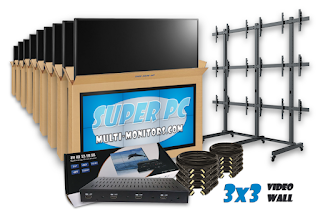
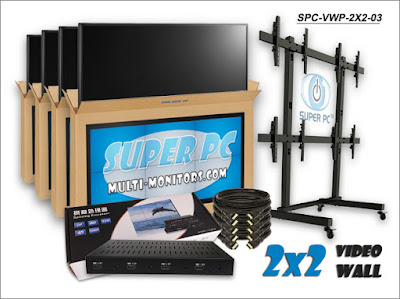
To buy a large display for advertisement, for example 64 or 84 inches LCD, is too high to afford. A video wall is a group of smaller displays tiled together in a matrix to create one large display. We provide the controller box that drives the display over multi-screens. All the video wall controllers support different configurations of the video output signals. The videowall control (OSD) buttons are located on the front panel of the video wall controller for easy access, while all the video and power cables are connected to the rear panel for convenient cabling. The video controllers can be connected to LCD or DLP panels, video wall cubes, projectors or any monitor that accepts a DVI input signal.

Multi-Screen "Cloud" Gaming Made Easy

OnLive Play Instantly

Set to launch in June, the cloud gaming service OnLive, a new gaming service that will allow people to "stream" popular games like "Assassin's Creed II" over the Internet. This new system is said to work much like watching TV shows or listening to music online.

OnLive will be available to Mac and PC users via a browser plug-in that will let you play games hosted from OnLive's servers. This is what's becoming commonly known as "cloud computing." That also means that players can buy or rent games with older, less powerful computers, without having to purchase a console such as Xbox or PS3.

OnLive also promises to release a "MicroConsole" device, which will let you play games on your TV, later this year. Along with other devices added subsequently, OnLive also will be allowing multi-player user ability on all the game platforms. Making it easier to get your gaming party started.

Steve Perlman founder and CEO said "We want to slow the impact of people jumping on to our servers just a little bit."

The "MicroConsole" -launching later this year, will be a inexpensive, cassette-sized adapter that plugs into a TV set to stream games. OnLive expects to see the tiny console to be more popular than its PC and Mac streaming service.

usb-graphics-adapter-background

In addition to the perks of not having to actually have hardware and software, OnLive is a service: like other online gaming services, you'll get gamer tags, profiles, the ability to make friends, and chat-but the kicker is that all of this is done via live video.

Many people are asking whether the company's servers and players' broadband connections would be able to handle streaming without a lag that would disrupt playing with pauses and glitches. Perlman said it's working, and "assuming you have a decent Internet connection," gamers who've been testing the service are "playing normally."

With Youtube and tons of other Flash based videos, it may be easy to assume that streaming video games would be the next big thing. However, streaming video games is a bigger challenge than music and movies, because games cannot be easily compressed into smaller files before streaming over the Internet. That is due to the idea that games are interactive, and requiring instant responses from the game to players. That way, when you shoot at your enemy, for example, the game must respond in real time without missing a beat.

The first company in its industry to offer streaming high-end video games, says it has come up with a new form of compression that lets its game servers communicate with players over broadband connections in real time.

With big names like Electronic Arts Inc., Ubisoft, Take-Two Interactive Software Inc. and Warner Bros. Interactive Entertainment, the service is well vested. Of course, all services come with a cost, and OnLive will run $15 per month, though you will probably see some multi-month deals before the service hits the mainstream in June. In addition to that, you'll have to rent or purchase the titles that you want to play, however no specific pricing has been mentioned yet.

Triple array with Bezel management

This could mean more computer monitors for PC gamers. Without the need to have high end machinery to process all the data evolved it would be easy to utilize that extra energy towards a dual monitor or multiple monitor LCD display. Flight Simulator is a great game to have several monitors for which systems are generally built around the software. With streaming games you can play an untold number of games in which you could turn your computers monitors into a multi-monitor view. Think of a triple monitor display to give a truly life like resolution on a wider viewing angle for the best gaming experiencehp-usb-graphics-adapter-background

Hey Rambo! Got Enough RAM?

super pc banner

vista-tips-increase-ram-tip

Here's a question. Ever launch Excel or Internet Explorer and have to wait a whole half a minute or even up to a minute for the program to open and become usable? Sometimes when you close your browser, does a window on your computers monitor appear saying that "Internet Explorer has encountered a problem," and asks you to "send error report?" Your computer may even run fine outside of this, however if your programs are taking a long time to open, then it may be because your system does not have adequate amounts of RAM.

RAM stands for Random Access Memory and is used as a temporary storage place for memory by your computer. This memory is in use when tasks are being executed by different programs. Therefore, you should have enough RAM memory to process all the tasks you would be requiring of the computer at hand. If you don't have enough RAM it will cause a major slowdown of your computer while it is booting up or even just regular processing tasks.

Anything less than 1GB of RAM is not enough nowadays for basic operations. Check and see how much RAM you have by clicking Start, then right-click over "My Computer" and selecting "Properties" from the drop-down menu. Sometimes it can take a moment for the page to populate and once it does, it will tell you how much RAM you have installed on that computer.

add-ram-desktop

Increasing RAM is relatively inexpensive however, please note that RAM is not a universal in its compatibility, so before buying, you need to know what kind of RAM you computer uses. Installing the wrong RAM can lead to several different problems all together.

When considering an increase in RAM on your computer, keep in mind that you are adding a physical piece of hardware to the computer. Be sure you understand that there are some risks involved if you don't perform due diligence in understanding the RAM requirements of your motherboard.

Find out what the maximum amount of RAM that you can install in your computer. This can generally be easily found at your computer manufacturer's website. Look up the speed and type of RAM you need for your computer so that you know what memory chips are supported by your motherboard. SIMMs (Single Inline Memory Modules) or DIMMs (Dual In-Line Memory Modules). Also while on the PC manufacturer's website find out how many slots you have for additional RAM.

Getting to your RAM in a typical desktop computer is a moderately easy task. Unplug the power cord from the back of your computer. Open the case as shown in your computer manual. In most cases you don't even need the manual to show you how to do this. It is generally a simple matter of unscrewing one or two screws on the back or bottom of the computer and exposing the computer's motherboard.

Locate your RAM slots. If all of your memory banks are full, you may need to replace your RAM rather than just install more.

To remove old RAM press apart the securing clips on both ends of the RAM slot, and the module will pop up slightly. Lift the RAM module straight up and out of the memory slot.

To install the new RAM line up the notched edge of the RAM module with the tab on the bottom of the RAM slot. The RAM only fits if you line it up correctly so you don't have to worry putting it in backwards. Press straight down on the module, applying firm but gentle pressure on both ends until it clicks in place, and the securing clips will snap into place.

Replace your computers cover and reattach the power cords and cables. Power up the computer and the system should automatically recognize the new memory.

You should be good to go. Now if that sounded like too much to do then it probably is and you may want to consider purchasing a Super PC computer that can house all the RAM you would ever need the 1st time around. With a Super PC Multiple Monitor Computer you may also use dual monitors instead of a single, and they're upgradable to 16 monitors! They also have the industries leading turnkey multiple LCD Display adapters.


  • Always take measures to ground yourself when working inside your computer to avoid damaging the chips and electronics.


  • Use only the memory types supported by your computer. For a list of those, see the manufacturer specifications in your computer manual.


  • Install paired memory in the order shown on the system board.


  • Always install a single memory module in the DIMM connector 1 before installing memory modules in any other connectors.


  • Do not mix old and new memory modules if possible.

Monday, October 19, 2009

Become An Expert Super Geek with a Multi Monitor PC


The days when nerdy computer geeks isolated themselves in fear of persecution are far behind us. Today Bill Gates still reigns as the savior of geeks all around the world, and with all due glory. Now that many so-called "computer geeks" are becoming wealthy, the age of ostracizing the computer savvy is coming to an end. Although the road to true computer geekdom is long and torturous, the benefits are well worth it.

One of the first steps towards being tech savvy is by updating your current computer system to something worthy of the term "state-of-the-art" or replace it all together. Your PC should support multi screen displays. Not only do they look very impressive, but also serve the purpose of multi stream computing the way a true techy would.

Upgrade your PC by adding a little RAM (random-access memory) and install a dual monitor video card or two. A dual monitor adapter is available for those who don't want to invest the farm on upgrading a already failing system, and/or on a new system. Adding another hard drive would give you plenty of storage space and free up stress on your main drive.

Get a real dual monitor setup from the Multi-Monitor Store at www.multi-monitors.com. No need to purchase expensive multi monitor software if windows and good graphics cards will do fine.

A multiple monitor PC will have you shining like a knight of armour when you can pull up research while watching YouTube videos simultaneously. Sure you can say that you know how to upgrade RAM, but with a multi monitor display, seeing is believing.

"Easy Setup, Relative Affordability"


"Beyond the stellar productivity rewards and the obvious geek cred, there's yet another cool thing about a dual-monitor setup: It's easy to put together."

Tom Mainelli, PC World

Dual screen monitors takes you from crawling to walking upright instantly, however if you want to zip through multiple applications simultaneously in a flash, go multiple screen display. The less you have to toggle through windows, the more efficient you'll operate. Thus becoming a bonafide computer geek.

Multiple Screens; Get Set Up Now!


In this article we're going to go over how to connect a second monitor to your computer. A Multiple Monitor display are a must for people who like to work on several documents simultaneously. Often video editors and graphics professionals ones who need to expand their screen real estate, but in today's fast paced culture, everyone benefits from a multiple monitor setup.

Most graphics cards today support multiple monitors. Trading Computers use many of these type of cards. If yours doesn't, inexpensive dual monitor video cards from companies such as ATI and NVidia are ideal choices. You can buy dual monitors for about $300 each with a special stand included, but if you want to keep using the computer monitor you already have, try to get a matching monitor of similar size and shape.

Many cards come with two different types of outputs. A standard analog video connector, and a digital DVI connector. If the monitors you're using come with a VGA plug you'll need to use a DVI to analog adapter, which should come with your new graphics card.

Before installing a new card, back up your PC. It's always a good safety precaution.

Next uninstall the drivers from the old graphics card. To protect your computers sensitive electronics, make sure you first ground yourself by touching a metal object or by wearing an anti static wrist strap.

Once this is done, shut your PC and unplug it. Open the case and remove the old card and install the new one. Once the new card is installed, plug the power cable back in, connect both monitors, and start the PC. The PC will recognize the new card and install the drivers.

Initially the same image will appear on each monitor, but by going to the Display Control Panel and selecting Settings, you can extend the size of your desktop over both monitors. The horizontal screen resolution will double. You can now drag application windows from one monitor to the other with ease, and run programs side by side.

Installation of a new card with dual monitor display takes about a half an hour. If you purchased a new card as well as a second monitor, cost for the project can run from $300 to $900 and up. However, having multiple monitors is like having a bigger desk. It makes it easier to get more done.

Do You Want A Quad Monitor Display? Or A 30 Inch Monitor?

Four Monitors or The Big One?


Ok we have to admit that the giant 30-inch computer monitors seen in stores are somewhat lust worthy.

Just imagine what you could do with all that screen real estate, and all those pixels! Wait hold it right there--those giant displays aren't necessarily all they're cracked up to be. Let's take a closer look and reconsider a few things.

One thing to consider right off the bat is price. They're expensive considering the mere functionality. You could spend from $1300 to $2500 for a single 30-inch monitor. For example the NEC MultiSync LCD sells for more than $2000 which may not weigh out in terms of price over functionality.

Even though some monitors may have high resolution (typically 2560 X 1600 pixels), which can give you a good amount of detail. On the other hand, they're also so wide that the distance from your eyes to the screen varies. This is happens when your sitting 24 inches from the center of the screen, then you're 28 inches or more from the corners. That may not sound like a whole lot, but if you're working in front of a monitor all day, you could develop eye fatigue from constantly having to adjust your focus closer or farther as you look around the screen. It would work out better if the monitor was curved, keeping your eyes at a consistent distance from the display as you do your work.

Something else to consider would be practicality.

If you have a gigantic screen, then you have a single, vast, wide open unstructured desktop. Sure that's great if your editing large, HD images, or things of that nature. However if your the common foe who depend on PCs to work with a bunch of different types of information e.g. Web Browsers, Word Processors, Spreadsheets, Emails, and all at the same time. Try using all of that on a giant monitor and you may very well drown in an abyss of cluttered desktop madness. Having to drag and drop, and stretch and constantly adjust the windows manually.

Now hear this.

There's an alternative! Instead of one big screen, use four smaller ones! It's actually rather almost as easy to get a nice quad monitor display up and going. You can purchase a 4 monitor display, for under $1200 and get 4 19" wide-screen monitors, ergonomic stand and free delivery from the Multi Monitor Store @ www.multi-monitors.com.

Conserve desk space by suspending four flat panels on a single base. Easily, view multiple screens at once, to increase productivity. Get with the Quad Stand and Four DELL LCD 19" Wide-screen Monitors for less than $1200 delivered to you in just a few days.

In this senario alone you would come out with the equivalent of a 38-inch-diagonal monitor,

an area of 2880 x 1800 pixels. That's over 25% more than a 30-inch monitor can offer. Multiple monitors give a rather larger advantage considering size, resolution, costs, and not to mention overall health.

You don't have to have a fancy multiple monitor setup to still benefit from multi screen technology.

The mere act of dividing the display into four sections, allows you to park different applications on different panels. Just like you may have a placement system on you desk i.e. phone on the right, pencils on the left. You can also organize your work in multiple applications e.g. positioning you e-mail on the upper right screen, your word processor on the lower right screen and so on and so forth. You can then easily drag and drop information from one program to another, all while keeping all of your windows in full view. The days of minimizing and maximizing can now be behind you.


Find And Restore Data From An Old Hard Drive

multi monitor displays


How to Resurrect a Crashed Hard Drive

The hard drive is possibly the most failure prone part of your computer. Whether it's been dropped, over heated, or simply died of old age. If you've traced your problem to the hard drive, the solution depends on the symptoms it's exhibiting.

If the drive spins up but behaves erratically, you probably have data corruption caused by a failing drive. Try the following steps to recover your data and copy it to a good drive before the bad one dies.

Check cabling.

Before anything else, if you're using an IDE drive, check that the data cable is connected properly, and if it is, switch to a new cable. IDE cable are notoriously cheap and are prone to having their insulation stripped by the metal edges inside the PCs case shorting out the cable.

Try a boot Disc

Try starting your machine with a boot disc such as Ultimate Boot CD for Windows to learn if the drive is readable. If it is, back up all of the data to another drive, and reformat the original discs to see if it's salvageable.

Check for bad sectors

You may have bad sectors. Try using HDD Re-generator to locate any. Download the demo and burn it to a boot able CD. If the free demo finds bad sectors, it may be worth paying for the full version, if it can recover the bad sectors and make the drive usable once more.

Try Utilities from disk's manufacturer

TackTech.com features manufacturer specific utilities for virtually any hard drive vendor. Find outwhat company made the drive that's failing, then download the appropriate diagnostic application. All of the tools are free and can help diagnose problems on the drive and repair them.

Try Data Recovery Software

If you still can;t get the drive to boot, turn to data recovery software to attempt salvage lost files. You have dozens of alternatives in this market, and prices may generally run from $40 to $200. Stellar Phoenix may be an ideal choice.

Some Last Ditch Efforts

If the Hard Drive won't spin up at all, you can still try a few last at jabs that have only a slim chance of working. But if your drive won't even spin, it probably wont hurt to try these, just don't do anything to further damage the disc, as the drive recovery surface may still be able to help. For example don't bang on the drive, and don't remove the cover and expose the heads.

Try the Freezer Trick

The freezer trick is an old standby if you have a drive that's clicking but not spinning. Put the drive in a plastic freezer bag to keep the water out, and wrap it in a towel for extra protection, and then freeze it for a few hours. Let it thaw back to room temperature after you remove and get rid of any condensation you can see. There's no agreed upon length of time to freeze it so start with an hour and work your way up to 24 hours and see if you can make that drive spin up one last time.

Try to Loosen Stuck Drives

To loosen stuck discs, hold the drive in your hand and rotate your arm outward quickly, parallel to the orientation to the plats, a bit like throwing a Frisbee. Repeat this action several times but make sure to not to bang the disc on anything. This action is designed to solve a problem called stiction or static friction, which can prevent drive platters from spinning.

Apply a High-Wattage Power Burst

Finally you can try attaching the drive to a high wattage power supply. Even though it wont draw up extra power, a burst of juice from the highest wattage power supply you can find, could jar it into spinning up one last time.

Copy All Your Files

Remember if you do get a dead drive spinning again, don't let it stop until you've copied off all your critical data. Chances are, you wont have it working again.

If all else fails and you absolutely need data off the hard drive, your last best hope is to send it to a data recovery service like Drivesavers. It isn't cheap and expect to pay up to $3000, but they can perform magic when consumer grade tools fail.

Make Regular BackupsTo alleviate this problem in the future, make sure your back ups are up to date, and for added security, mirror a second hard drive to ensure you have a real-time back up for the minimal risks of data loss and downtime. PC World Aug. 09


[caption id="" align="alignright" width="150" caption="dual monitor display"]dual monitor display[/caption]

multiple monitor gaming